
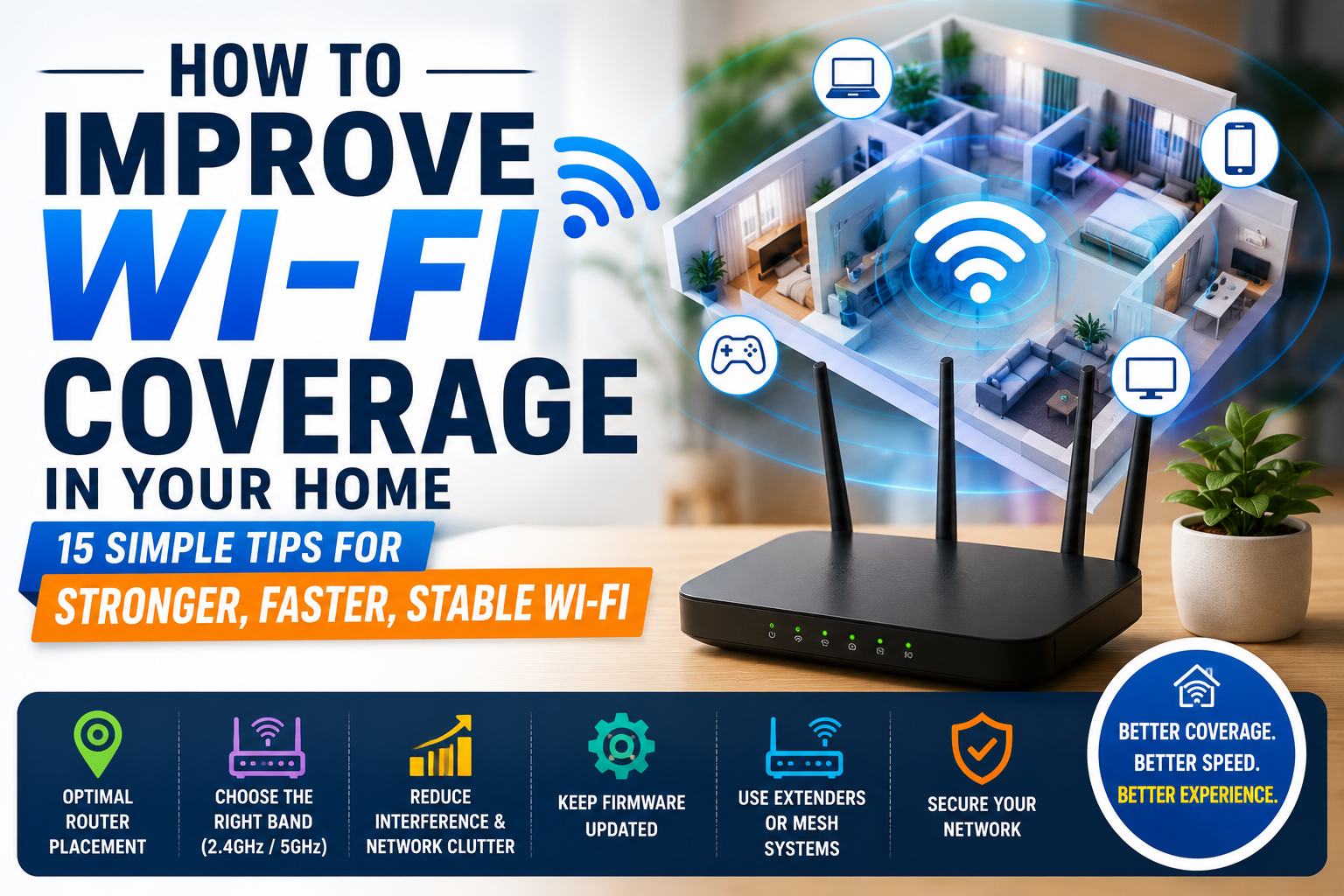
Few things are more frustrating than weak Wi-Fi. Whether you’re working from home, attending online classes, streaming 4K movies, or playing online games, poor wireless coverage can interrupt your daily activities.
Many people assume that upgrading to a faster internet plan will solve the problem. In reality, weak Wi-Fi coverage is often caused by poor router placement, signal interference, outdated hardware, or obstacles inside the home—not by the internet connection itself.
The good news is that many Wi-Fi problems can be fixed without spending a lot of money.
In this guide, you’ll learn practical ways to improve Wi-Fi coverage, understand why wireless signals become weak, and discover when it’s time to upgrade your networking equipment.
Affiliate Disclosure: Some links on Arunova.net are affiliate links. If you purchase through these links, we may earn a small commission at no additional cost to you. Our recommendations are based on independent research and practical experience.How to Improve Wi-Fi Coverage in Your Home
Table of Contents
- Why Wi-Fi Coverage Becomes Weak
- Common Causes of Poor Wi-Fi Signal
- Best Router Placement Tips
- Reduce Signal Interference
- 2.4GHz vs 5GHz vs Wi-Fi 6
- Change Your Wi-Fi Channel
- Update Your Router
- Upgrade Your Router
- Wi-Fi Extenders Explained
- Mesh Wi-Fi Systems Explained
- Ethernet Backhaul vs Wireless Backhaul
- Tips for Multi-Story Homes
- Gaming and Video Calling Tips
- Common Wi-Fi Mistakes
- Router vs Extender vs Mesh
- Frequently Asked Questions
- Final Verdict
Why Does Wi-Fi Coverage Become Weak?
Unlike wired Ethernet connections, Wi-Fi signals travel through the air. As the signal travels farther from your router, it gradually becomes weaker.
Several factors affect wireless signal strength:
- Distance from the router
- Thick concrete walls
- Brick walls
- Metal furniture
- Mirrors
- Water tanks
- Kitchen appliances
- Microwave ovens
- Bluetooth devices
- Neighboring Wi-Fi networks
- Router quality
- Number of connected devices
Every obstacle between your router and your device reduces signal quality. That’s why you may enjoy excellent speeds in your living room but experience slow internet in a bedroom upstairs.
Understanding what weakens a Wi-Fi signal is the first step toward improving your home’s wireless coverage.
Common Causes of Poor Wi-Fi Coverage
Before buying new networking equipment, identify the actual cause of the problem.
1. Poor Router Placement
This is the most common reason for weak Wi-Fi.
Many internet service providers install the router near:
- The entrance door
- Television cabinet
- Corner of a room
- Floor level
- Storage cabinet
These locations rarely provide the best wireless coverage.
A centrally located router distributes signals much more evenly throughout the house.
2. Thick Walls
Concrete and brick walls significantly weaken Wi-Fi signals.
Common obstacles include:
- Concrete walls
- Stone walls
- Brick walls
- Marble partitions
- Metal doors
If your home has several thick walls, the signal may struggle to reach distant rooms.
3. Electronic Interference
Many household devices use frequencies that can interfere with Wi-Fi.
Common sources include:
- Microwave ovens
- Bluetooth speakers
- Cordless phones
- Baby monitors
- Wireless security cameras
- Smart home devices
Although modern routers handle interference better than older models, nearby electronics can still affect performance.
4. Too Many Connected Devices
Modern homes often have dozens of connected devices.
Examples include:
- Smartphones
- Tablets
- Smart TVs
- Laptops
- Gaming consoles
- Security cameras
- Smart bulbs
- Smart plugs
- Voice assistants
- Streaming devices
Every connected device shares the available wireless resources.
Older routers may struggle when many devices are active at the same time.
5. Outdated Router
Many households continue using the router supplied by their ISP for several years.
Older routers often have:
- Slower processors
- Limited memory
- Older Wi-Fi standards
- Smaller antennas
- Reduced coverage
- Lower device capacity
If your router is more than five or six years old, upgrading can noticeably improve coverage and stability.
Best Router Placement Tips
Router placement has a major impact on Wi-Fi performance.
In many cases, moving the router costs nothing but delivers a significant improvement.
Place the Router Near the Center of Your Home
Imagine your Wi-Fi signal spreading outward in all directions.
If the router sits in one corner of the house, much of its signal is wasted outside your home instead of reaching your living spaces.
A central location provides more balanced coverage.
Keep the Router Elevated
Avoid placing your router:
- On the floor
- Under a desk
- Inside a cabinet
- Behind furniture
Instead, position it:
- On a shelf
- On a table
- Wall-mounted if supported
Elevating the router reduces signal blockage and improves overall coverage.
Avoid Metal Objects
Large metal objects reflect or block Wi-Fi signals.
Keep the router away from:
- Steel cupboards
- Refrigerators
- Filing cabinets
- Metal shelves
Even decorative metal items can affect wireless performance.
Keep It Away from Appliances
Avoid placing the router next to:
- Microwave ovens
- Refrigerators
- Washing machines
- Television sets
- Large speakers
These appliances may create interference or partially block the signal.
Keep It in an Open Area
Wi-Fi performs best when the router has a clear path to connected devices.
Avoid placing it:
- Inside drawers
- Behind curtains
- Inside TV cabinets
- Inside wardrobes
Open spaces allow radio waves to travel more freely.
Reduce Wi-Fi Signal Interference
Even a good router can struggle if nearby devices create interference.
Here are a few simple ways to reduce interference:
- Keep the router away from cordless phones.
- Move it away from microwave ovens.
- Avoid placing it behind a television.
- Separate it from Bluetooth speakers.
- Keep smart home hubs a short distance away.
- Reduce cable clutter around the router.
- Finally, make sure the router’s antennas remain unobstructed.
Small adjustments like these can noticeably improve signal quality, especially in apartments where many wireless devices operate close together.
Quick Wi-Fi Improvement Checklist
Before spending money on new equipment, try these simple steps:
✅ Move the router to the center of the house.
✅ Place it on a shelf instead of the floor.
✅ Keep it away from thick walls.
✅ Avoid placing it near microwaves and televisions.
✅ Restart the router occasionally.
✅ Disconnect unused devices.
✅ Update the router firmware.
✅ Check if your router supports newer Wi-Fi standards.
Many users see a noticeable improvement simply by repositioning the router and reducing interference.
Coming Up Next
In the next section, you’ll learn:
- 2.4GHz vs 5GHz vs Wi-Fi 6 explained
- Which band is best for different situations
- How to choose the right Wi-Fi channel
- When it’s time to buy a new router
- Whether a Wi-Fi extender or mesh system is the better choice
- Tips for multi-story homes
- Buying recommendations
- Frequently Asked Questions
- Final verdict