
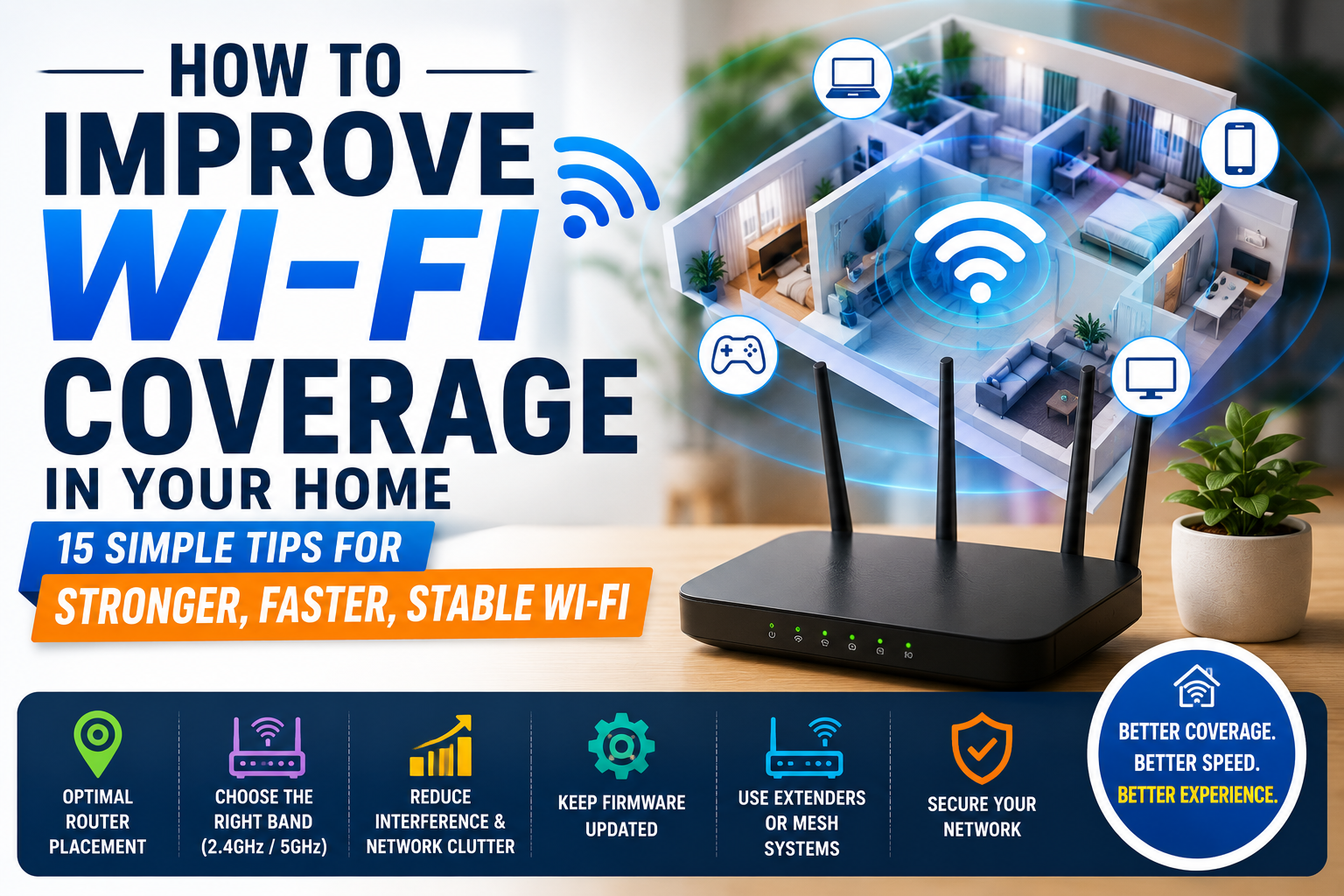
How to Improve Wi-Fi Coverage in Your Home (2026 Guide)
Introduction
A slow or unreliable Wi-Fi connection can be frustrating, especially when you’re working from home, attending online classes, streaming videos, or gaming. Buffering, dropped video calls, and weak signals in certain rooms are common problems in many homes.
Fortunately, you don’t always need to buy a new internet connection to solve these issues. In many cases, improving your Wi-Fi coverage is as simple as moving your router, updating its settings, or adding the right networking equipment.
This guide explains practical ways to strengthen your home Wi-Fi network and enjoy a faster, more stable internet experience.
Affiliate Disclosure: This article may contain affiliate links. If you purchase through these links, Arunova may earn a commission at no extra cost to you.
Why Wi-Fi Coverage Matters
A strong Wi-Fi signal benefits every connected device in your home.
Better coverage means:
- Faster browsing
- Smoother video streaming
- Clearer video calls
- Faster downloads
- Better online gaming
- Improved smart home performance
- More reliable work-from-home experience
1. Place Your Router in a Central Location
Router placement has a huge impact on signal strength.
Instead of hiding the router in a corner or cabinet, place it near the center of your home.
A central location helps distribute the signal more evenly throughout your living space.
Avoid placing it:
- Behind furniture
- Inside cupboards
- On the floor
- Near thick concrete walls
2. Keep the Router Elevated
Wi-Fi signals spread better when the router is placed above floor level.
Place it on:
- A table
- A shelf
- A wall mount
Keeping the router elevated often improves coverage without spending any money.
3. Keep It Away from Electronic Devices
Many household electronics can interfere with Wi-Fi signals.
Keep your router away from:
- Microwave ovens
- Cordless phones
- Bluetooth speakers
- Large televisions
- Refrigerators
- Wireless security systems
Reducing interference can improve both speed and stability.
4. Position the Antennas Correctly
If your router has external antennas, their position matters.
A simple guideline is:
- One antenna vertical
- One antenna horizontal (if available)
This helps improve coverage for devices located at different heights and orientations.
5. Restart Your Router Regularly
Like any electronic device, routers benefit from an occasional restart.
Restarting can:
- Clear temporary memory
- Improve performance
- Resolve minor connection issues
Restarting once every week or two is a good habit.
6. Update Router Firmware
Manufacturers regularly release firmware updates that improve:
- Security
- Stability
- Performance
- Compatibility
Check your router manufacturer’s support page or mobile app for available updates.
7. Switch Between 2.4 GHz and 5 GHz
Most modern routers provide two Wi-Fi bands.
2.4 GHz
Advantages:
- Longer range
- Better wall penetration
Best for:
- Larger homes
- Smart home devices
- General browsing
5 GHz
Advantages:
- Higher speeds
- Less congestion
Best for:
- Video streaming
- Online gaming
- Video conferencing
- Large downloads
Choose the band that best suits your distance from the router and your usage.
8. Reduce Network Congestion
Too many connected devices can slow your network.
Disconnect devices you’re not actively using, such as:
- Old phones
- Unused tablets
- Smart TVs
- Streaming devices
- IoT gadgets
This frees up bandwidth for active users.
9. Change the Wi-Fi Channel
In apartments or densely populated neighborhoods, many nearby routers may use the same Wi-Fi channel.
Switching to a less crowded channel can reduce interference and improve performance.
Many modern routers can select the best channel automatically.
10. Use a Wi-Fi Extender
If one or two rooms have poor coverage, a Wi-Fi extender can help.
A Wi-Fi extender receives your existing signal and rebroadcasts it to increase coverage.
Best for:
- Bedrooms
- Upstairs rooms
- Garages
- Home offices
11. Consider a Mesh Wi-Fi System
Large homes often benefit more from a mesh Wi-Fi system than a traditional router.
Mesh systems use multiple units that work together to provide seamless coverage throughout the house.
They are ideal for:
- Multi-story homes
- Large apartments
- Smart homes
- Heavy internet users
12. Upgrade an Old Router
If your router is several years old, upgrading to a newer model can make a significant difference.
Modern routers often provide:
- Better speed
- Improved coverage
- Enhanced security
- Better handling of multiple devices
13. Secure Your Wi-Fi Network
An unsecured network allows unauthorized users to consume your bandwidth.
Always:
- Use a strong password
- Enable WPA2 or WPA3 encryption
- Change the default administrator password
This protects both your connection and your personal data.
14. Use Wired Connections for Stationary Devices
Devices that rarely move, such as desktop computers or smart TVs, can benefit from Ethernet connections.
Using wired connections:
- Reduces Wi-Fi congestion
- Improves stability
- Provides faster, more consistent speeds
15. Test Your Internet Speed
Regularly checking your internet speed helps identify whether slow performance is caused by your Wi-Fi or your internet service.
Use reputable online speed test tools to compare your results with the speed promised by your internet provider.
If wired connections are also slow, the issue may lie with your ISP rather than your Wi-Fi network.
Common Wi-Fi Mistakes
Avoid these common issues:
- Placing the router inside a cabinet
- Positioning it near thick concrete walls
- Ignoring firmware updates
- Using weak passwords
- Never restarting the router
- Keeping too many unused devices connected
- Expecting one router to cover a very large house
Frequently Asked Questions
Why is my Wi-Fi strong in one room but weak in another?
Walls, furniture, distance, and interference from other electronic devices can weaken the signal before it reaches certain areas of your home.
Will a Wi-Fi extender increase internet speed?
A Wi-Fi extender improves coverage, allowing devices in weak-signal areas to connect more reliably. It does not increase the speed provided by your internet service.
Should I choose a Wi-Fi extender or a mesh system?
For a few weak spots, a Wi-Fi extender is often sufficient. For larger homes or multiple floors, a mesh Wi-Fi system usually provides a better overall experience.
How often should I restart my router?
Restarting your router every week or two can help maintain stable performance and resolve temporary issues.
Does router placement really matter?
Yes. Placing the router in a central, elevated, and open location is one of the simplest ways to improve Wi-Fi coverage without spending any money.
Final Thoughts
Improving your home’s Wi-Fi coverage doesn’t always require expensive equipment. Start by optimizing your router’s location, reducing interference, updating firmware, and using the appropriate Wi-Fi band.
If you still experience weak signals in certain areas, consider adding a Wi-Fi extender or upgrading to a mesh Wi-Fi system.
A reliable Wi-Fi network makes everyday activities—from work and study to entertainment and smart home control—more enjoyable and productive.
Related Articles
- How to Set Up a Budget Home Office in India
- Essential Computer Accessories for Work-from-Home Beginners
- Laptop Stand Buying Guide: What to Check Before Buying
- How to Choose the Right Wireless Mouse
- Best Wireless Mouse Under ₹1,000 on Amazon
- Best Wi-Fi Extenders for Home in India (Coming Soon)
- Best Mesh Wi-Fi Systems for Large Homes (Coming Soon)