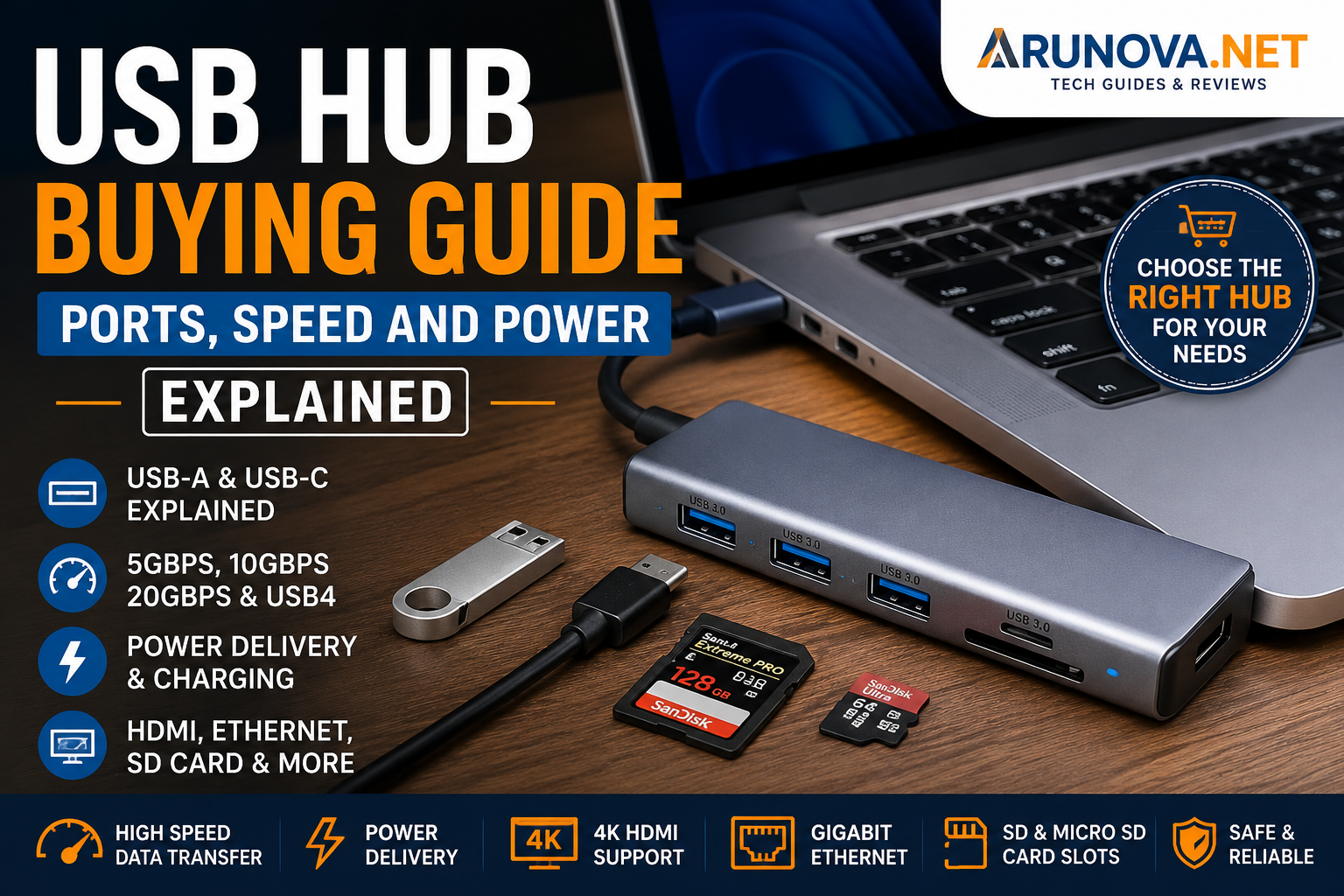
Modern laptops are becoming thinner, lighter, and more portable. However, this improved portability often comes with one disadvantage: fewer connection ports.
A laptop may have only one or two USB ports, while you may need to connect a mouse, keyboard, external drive, webcam, printer, phone, memory card, monitor, or Ethernet cable. A USB hub solves this problem by expanding one USB connection into several usable ports.
Choosing a USB hub is not as simple as selecting the model with the highest number of ports. You must also consider connection type, transfer speed, power delivery, charging support, video output, build quality, and compatibility.
This USB hub buying guide explains everything you need to know about USB ports, speeds, power, and practical features before purchasing a hub for your laptop, desktop computer, tablet, or work-from-home setup.
Affiliate Disclosure: Arunova.net may earn a commission when you purchase through qualifying affiliate links, at no additional cost to you. Our recommendations are based on product features, compatibility, usefulness, and independent research.
What Is a USB Hub?
A USB hub is a compact accessory that allows you to connect multiple USB devices through a single USB port on your computer.
For example, one USB-C port on your laptop can be expanded into:
-
- Three USB-A ports
-
- One USB-C charging port
-
- One HDMI port
-
- An SD card slot
-
- A microSD card slot
-
- An Ethernet port
Basic models provide only additional USB ports, while advanced USB-C hubs can function like small docking stations.
A hub can be useful for:
-
- Laptops with limited ports
-
- Desktop computers with difficult-to-reach rear ports
-
- Work-from-home desks
-
- Students using several accessories
-
- Content creators transferring photos and videos
-
- Business travellers
-
- Tablet users
-
- MacBook and ultrabook owners
However, the features available depend on the capabilities of both the hub and the computer connected to it.
USB Hub vs USB Docking Station 
USB hubs and docking stations serve similar purposes, but they are not always the same.
USB hub
A USB hub is generally smaller and more affordable. Its main purpose is to expand the number of available ports.
It may provide:
-
- USB-A ports
-
- USB-C ports
-
- SD card readers
-
- HDMI output
-
- Ethernet
-
- Charging pass-through
Docking station
A docking station is usually larger, more powerful, and designed to create a complete desktop workstation.
It may support:
-
- Multiple external monitors
-
- High-power laptop charging
-
- Several high-speed USB ports
-
- Ethernet
-
- Audio connections
-
- Multiple storage devices
-
- Permanent desk installation
Choose a USB hub for portability and basic expansion. Consider a docking station when you need multiple displays, high charging power, and a more permanent workstation.
First Check Your Laptop’s Connection Type
Before comparing hubs, identify the port you will use to connect the hub to your device.
The two most common choices are USB-A and USB-C.
USB-A hubs
USB-A is the traditional rectangular USB connector found on many desktop computers and older laptops.
A USB-A hub is suitable for:
-
- Older laptops
-
- Desktop computers
-
- Keyboards and mice
-
- Printers
-
- Pen drives
-
- Basic external drives
-
- Everyday accessories
USB-A hubs usually do not charge the laptop itself. They are mainly used for data connections and peripheral expansion.
USB-C hubs
USB-C uses a smaller, reversible connector. It can support data transfer, charging, video output, and other functions, but the exact capabilities vary by device.
The USB Implementers Forum describes USB Type-C as a reversible connector designed to support scalable power and performance. However, the connector shape alone does not guarantee a particular speed, charging level, or video capability.
A USB-C hub is ideal for:
-
- Thin modern laptops
-
- MacBooks
-
- Ultrabooks
-
- Tablets
-
- Smartphones with compatible desktop features
-
- Devices with very few built-in ports
Important: USB-C does not guarantee every feature
Two USB-C ports may look identical but support different functions.
A USB-C port may support:
-
- Charging only
-
- Data only
-
- Data and charging
-
- Video output
-
- USB Power Delivery
-
- USB4
-
- Thunderbolt
-
- DisplayPort Alternate Mode
Similarly, not all USB-C cables support the same data rates, charging capacity, or display features. Microsoft advises users that not all USB-C-compatible cables support every feature.
Before buying a hub, check your laptop manufacturer’s specifications.
USB Versions and Data Speeds Explained
USB names can be confusing because older terms such as USB 3.0, USB 3.1, and USB 3.2 are still widely used in online listings.
The easiest method is to focus on the advertised maximum transfer speed rather than the version name alone.
USB 2.0 — up to 480 Mbps
USB 2.0 offers a theoretical maximum speed of 480 megabits per second.
It is usually sufficient for:
-
- Keyboard
-
- Mouse
-
- Printer
-
- Basic webcam
-
- Wireless receiver
-
- Game controller
-
- Occasional document transfer
USB 2.0 is not ideal for frequent transfers involving large videos, backups, or high-speed external SSDs. The USB-IF identifies 480 Mbps as the high-speed data rate associated with USB 2.0.
USB 5Gbps
This speed is commonly associated with names such as:
-
- USB 3.0
-
- USB 3.1 Gen 1
-
- USB 3.2 Gen 1
-
- SuperSpeed USB 5Gbps
It is suitable for:
-
- External hard drives
-
- Pen drives
-
- Card readers
-
- Standard external SSDs
-
- Large file transfers
-
- General office use
For most home and office users, a 5Gbps hub provides a good balance between price and performance.
USB 10Gbps
USB 10Gbps may appear under names such as:
-
- USB 3.1 Gen 2
-
- USB 3.2 Gen 2
-
- SuperSpeed USB 10Gbps
It is useful for:
-
- Faster external SSDs
-
- High-resolution photo libraries
-
- Large video files
-
- Regular backups
-
- Creative workloads
To achieve the advertised speed, the computer port, hub, cable, and connected storage device must all support the required standard.
USB 20Gbps
USB 3.2 supports transfer rates of 5Gbps, 10Gbps, and 20Gbps. The 20Gbps mode uses multi-lane operation and requires compatible USB-C hardware.
A 20Gbps connection may benefit:
-
- Professional external SSD users
-
- Video editors
-
- Large backup workflows
-
- High-performance workstations
Most everyday accessories do not require this level of bandwidth.
USB4
USB4 supports high-speed data, display traffic, and other protocols over USB-C. Current USB-IF guidance identifies USB data-performance levels including 20Gbps, 40Gbps, and 80Gbps, depending on the specific implementation and certified hardware.
USB4 hubs are useful for advanced users who need:
-
- High-speed storage
-
- Multiple display support
-
- Large data transfers
-
- Professional docking
-
- Premium workstation expansion
They are normally more expensive than standard USB 5Gbps or 10Gbps hubs.
Theoretical Speed vs Real-World Speed
The speed shown on a product page is a theoretical maximum.
Actual transfer speed may be lower because of:
-
- Hub controller limitations
-
- Shared bandwidth
-
- Storage-device speed
-
- Cable quality
-
- Laptop port limitations
-
- File size and file type
-
- Operating-system overhead
-
- Multiple connected devices
-
- Thermal throttling
-
- Adapter quality
For example, connecting four devices to a 5Gbps hub does not mean that every device will always receive an independent 5Gbps connection. The devices may share the hub’s available upstream bandwidth.
This is especially important when using:
-
- Multiple external drives
-
- External SSDs
-
- Video-capture devices
-
- High-resolution webcams
-
- Gigabit Ethernet
-
- Display adapters
For a keyboard, mouse, and printer, shared bandwidth is rarely a concern. For high-speed storage and video work, it can matter significantly.
How Many USB Ports Do You Need?
Buying a hub with too few ports may force you to upgrade again. Buying one with too many ports may increase cost and size unnecessarily.
Three-port or four-port hub
Suitable for:
-
- Mouse
-
- Keyboard
-
- Pen drive
-
- Printer
-
- Wireless receiver
This is a good choice for basic home and office use.
Five-port to seven-port hub
Suitable for:
-
- Multiple accessories
-
- External storage
-
- Webcam
-
- Card reader
-
- Mobile device
-
- Work-from-home setups
This range is practical for most laptop users.
Eight or more ports
Suitable for:
-
- Desktop workstations
-
- Creative professionals
-
- Multiple external drives
-
- Audio equipment
-
- Testing devices
-
- Permanent desk setups
For a large number of connected devices, consider a powered hub.
Allow one or two spare ports
Do not buy only for your current requirements. Leaving one or two unused ports gives you flexibility for future accessories.
Port Layout Matters
The number of ports is important, but their physical arrangement is equally important.
Closely positioned ports may become difficult to use with:
-
- Wide pen drives
-
- USB dongles
-
- Card readers
-
- Wireless adapters
-
- Thick cable connectors
Look for:
-
- Adequate spacing
-
- Side-facing ports for temporary devices
-
- Rear-facing ports for permanent cables
-
- Clearly labelled ports
-
- A cable long enough for your desk layout
A hub with seven poorly arranged ports may be less useful than a well-designed five-port model.
Bus-Powered vs Self-Powered USB Hubs
Power is one of the most important factors when selecting a USB hub.
Bus-powered USB hub
A bus-powered hub receives electricity from the laptop or computer port.
Advantages:
-
- Compact
-
- Portable
-
- No separate adapter
-
- Easy to carry
-
- Suitable for low-power devices
Best for:
-
- Mouse
-
- Keyboard
-
- Pen drive
-
- Wireless receiver
-
- Basic card reader
-
- Occasional smartphone connection
Limitations:
-
- Limited total power
-
- May not run several high-power devices reliably
-
- May disconnect devices under heavy load
-
- May charge phones slowly
-
- Not ideal for multiple external hard drives
Self-powered USB hub
A self-powered hub connects to an external power adapter.
Advantages:
-
- More stable power for connected devices
-
- Better for multiple peripherals
-
- Suitable for external hard drives
-
- Often supports charging while the computer is off
-
- Better for permanent desk use
Best for:
-
- Several external drives
-
- Multiple charging devices
-
- Audio interfaces
-
- High-power accessories
-
- Large desktop setups
-
- Long-duration use
Limitations:
-
- Less portable
-
- Requires a wall socket
-
- Larger and more expensive
-
- Adds another cable and adapter
Which one should you choose?
Choose a bus-powered hub for simple accessories and portability.
Choose a self-powered hub when you regularly connect multiple storage devices or accessories that require reliable power.
A powered hub does not automatically increase the data speed of a slow USB connection. Its main advantage is stable power delivery.
USB-C Power Delivery Explained
USB Power Delivery, usually called USB PD, allows compatible USB-C devices to negotiate and deliver higher levels of power through a USB cable.
The USB-IF describes USB Power Delivery as a system that enables more flexible power delivery alongside data over a single cable.
Some USB-C hubs include a port labelled:
-
- PD
-
- PD IN
-
- USB-C charging
-
- 65W PD
-
- 100W PD
-
- 140W PD
This is often a power-input port for pass-through laptop charging.
How pass-through charging works
The laptop charger connects to the hub’s USB-C PD input.
The hub then:
-
- Uses some power for its own operation and connected accessories.
-
- Passes the remaining supported power to the laptop.
For example, a hub may accept a 100W charger but provide only up to 85W to the laptop because some power is reserved for the hub.
Always check:
-
- Maximum power input
-
- Maximum power delivered to the laptop
-
- Charger wattage
-
- Laptop charging requirement
-
- Cable power rating
USB PD does not guarantee fast charging
Fast charging requires compatibility between:
-
- Laptop or device
-
- Hub
-
- Charger
-
- USB-C cable
-
- Charging protocol
A hub advertised with “100W PD” does not necessarily include a 100W charger. In many cases, you must use your existing charger or purchase one separately.
USB Power Delivery specifications can support very high power levels with compatible equipment, but a product’s actual output is limited to its advertised and certified capability. USB PD 3.1 expanded the specification to support power delivery up to 240W using compatible USB-C hardware and cables.
Do You Need Charging Ports?
Some hubs provide dedicated charging ports, while others provide only data ports.
Data port
A standard data port connects devices to the computer and may provide limited power.
Charging port
A charging port may supply more power but may not support data transfer.
USB-C PD input
A PD input usually accepts power from a charger so the hub can charge the connected laptop.
Check the labels carefully. Do not assume every USB-C port on a hub performs the same function.
One USB-C port may be:
-
- Power input only
-
- Data only
-
- Data and charging
-
- Display output
-
- A full-featured multifunction port
HDMI and External-Monitor Support
Many USB-C hubs include an HDMI port. This is useful for:
-
- Office monitors
-
- Televisions
-
- Projectors
-
- Presentations
-
- Extended desktop setups
-
- Larger screens for remote work
However, the presence of USB-C on your laptop does not guarantee video output.
Your device’s USB-C port must support a compatible video mode, such as DisplayPort Alternate Mode, USB4, or Thunderbolt.
Before purchasing, verify:
-
- Whether your laptop supports video through USB-C
-
- Maximum resolution
-
- Maximum refresh rate
-
- Whether the hub supports mirrored or extended display
-
- Whether multiple monitors are supported
-
- Operating-system limitations
Common advertised combinations include:
-
- 1080p at 60Hz
-
- 4K at 30Hz
-
- 4K at 60Hz
For smooth office work and video playback, 4K at 60Hz is preferable when supported by your laptop, hub, cable, and monitor.
A hub advertised as 4K-compatible may support only 4K at 30Hz, which can feel less smooth during cursor movement and scrolling.
SD and microSD Card Slots
A built-in card reader is useful for:
-
- Photographers
-
- Video creators
-
- Students
-
- Drone users
-
- Camera owners
-
- Smartphone storage cards
Confirm whether the hub allows SD and microSD cards to be used:
-
- One at a time
-
- Simultaneously
Also look for the card-reader speed. Some low-cost hubs include card slots that operate at relatively slow transfer rates, which may be frustrating when copying large photo or video collections.
Ethernet Ports
A hub with Ethernet allows you to connect your laptop to a wired network.
This is useful when:
-
- Wi-Fi is unstable
-
- You attend video meetings
-
- You transfer files over a local network
-
- You play online games
-
- Your laptop does not include an Ethernet port
-
- You need a reliable office connection
Common Ethernet options include:
-
- 100Mbps
-
- Gigabit Ethernet
-
- 2.5 Gigabit Ethernet
For most users, Gigabit Ethernet is the better long-term choice.
Remember that actual network speed also depends on:
-
- Internet plan
-
- Router
-
- Network cable
-
- Hub
-
- Laptop connection
-
- Local network equipment
Audio Ports
Some USB-C hubs include a 3.5mm audio jack.
This can be useful for laptops and tablets without a headphone socket.
Before buying, check whether the audio connection supports:
-
- Headphones only
-
- Headphones and microphone
-
- Combined headset
-
- Stereo output
-
- Volume controls
Audio quality can vary between hubs, especially in inexpensive models.
Build Quality
USB hubs are commonly made from plastic or aluminium.
Plastic hubs
Advantages:
-
- Lightweight
-
- Usually less expensive
-
- Suitable for occasional use
Possible disadvantages:
-
- May feel less durable
-
- Can move around on the desk
-
- May handle heat less effectively
Aluminium hubs
Advantages:
-
- Premium appearance
-
- Better rigidity
-
- Often improved heat dissipation
-
- Matches metal laptops
Possible disadvantages:
-
- More expensive
-
- Can become warm during use
-
- May scratch other devices when carried loosely
A warm hub is not automatically defective. Data transfer, charging, video conversion, and internal electronics can generate heat. However, excessive heat, disconnections, unusual smells, or unstable operation should be treated seriously.
Attached Cable vs Detachable Cable
Attached cable
Advantages:
-
- Cannot be forgotten
-
- Simple and compact
-
- No extra cable required
Disadvantages:
-
- Entire hub may become unusable if the cable fails
-
- Cable length cannot easily be changed
-
- Short cables may be inconvenient for desktops
Detachable cable
Advantages:
-
- Replaceable
-
- Easier to select the required length
-
- Better for desk organisation
-
- Useful for USB-C and USB-A cable changes when supported
Disadvantages:
-
- Cable may be misplaced
-
- Replacement cable must support the required speed and power
For permanent desk use, a detachable cable is often preferable. For travel, an attached cable is convenient.
Cable Length
A very short cable works well when the hub is placed beside a laptop.
A longer cable may be better for:
-
- Desktop towers
-
- Laptop stands
-
- Under-desk cable management
-
- Monitors with built-in workspace setups
Avoid unnecessarily long, low-quality cables for high-speed data and charging. Cable capability can affect speed, power, and display performance.
USB-IF certification programs exist because cables can have different capabilities, and users must choose cables suitable for the intended data and power requirements.
Compatibility With Windows, macOS, Linux, Android and iPadOS
Most basic USB hubs are plug-and-play, but advanced features may have compatibility restrictions.
Windows
Most hubs work without additional software. Display adapters, Ethernet controllers, or specialised functions may require drivers.
macOS
Basic ports generally work well, but multi-monitor support may vary by Mac model, processor, hub design, and display technology.
Linux
USB, storage, Ethernet, and card-reading functions often work, but checking chipset and driver compatibility is advisable.
Android and iPadOS
Compatible tablets and phones may support:
-
- External keyboard
-
- Mouse
-
- Storage
-
- Ethernet
-
- Card reader
-
- HDMI output
-
- Charging pass-through
Support varies by device and operating system.
Always verify compatibility with the exact model of your laptop, tablet, or smartphone.
Does Every Port Work at the Same Time?
Not necessarily.
Some hubs cannot run all advertised functions at maximum performance simultaneously.
Possible limitations include:
-
- Shared USB bandwidth
-
- Reduced charging output
-
- Lower display refresh rate
-
- SD and microSD slots operating one at a time
-
- Disabled data ports during certain modes
-
- Ethernet and storage sharing available bandwidth
-
- Power shortages when several devices are connected
Read the product description carefully for phrases such as:
-
- “Maximum combined speed”
-
- “Ports share bandwidth”
-
- “SD and microSD cannot be used simultaneously”
-
- “4K 60Hz available only on supported devices”
-
- “PD port does not support data”
-
- “Charger not included”
Individual Port Switches
Some powered USB hubs include an on/off switch for each port.
This feature can be helpful for:
-
- Disconnecting external drives without removing cables
-
- Controlling charging devices
-
- Reducing unnecessary power use
-
- Managing several permanent peripherals
-
- Testing electronic accessories
Look for clear status lights that are informative but not excessively bright.
Protection and Safety Features
For powered hubs and charging hubs, look for protections such as:
-
- Overcurrent protection
-
- Overvoltage protection
-
- Short-circuit protection
-
- Overtemperature protection
-
- Surge protection
-
- Reliable power adapter
-
- Recognised safety certifications
Avoid unbranded hubs with unclear specifications, especially for high-power charging or expensive storage devices.
A poor-quality hub can cause:
-
- Random disconnections
-
- Slow transfers
-
- Charging problems
-
- Display flickering
-
- Data corruption
-
- Overheating
-
- Device-recognition errors
Common USB Hub Buying Mistakes
Mistake 1: Buying based only on port count
More ports do not automatically mean better performance. Speed, power, spacing, and compatibility matter more.
Mistake 2: Assuming all USB-C ports are identical
USB-C describes the connector shape, not the complete feature set.
Mistake 3: Ignoring the upstream connection speed
A fast external SSD connected to a slow hub or laptop port will operate at the speed of the slowest component.
Mistake 4: Connecting several power-hungry devices to an unpowered hub
This may lead to disconnections, unstable drives, or device-recognition problems.
Mistake 5: Expecting the hub to include a charger
Many USB-C hubs support PD pass-through but do not include a power adapter.
Mistake 6: Ignoring display refresh rate
“Supports 4K” may mean 4K at only 30Hz rather than 60Hz.
Mistake 7: Buying a hub without checking device compatibility
Monitor support, charging, and advanced features depend on the laptop or tablet.
Mistake 8: Choosing an unknown brand only because it is inexpensive
Saving a small amount may not be worthwhile if the hub is unreliable or risks valuable data and equipment.
USB Hub Recommendations by User Type
For basic office users
Look for:
-
- Three or four USB-A ports
-
- USB 5Gbps support
-
- Compact design
-
- Reliable attached cable
-
- Plug-and-play operation
Suitable for a mouse, keyboard, printer, and pen drive.
For work-from-home users
Look for:
-
- Three USB-A ports
-
- USB-C PD charging
-
- HDMI
-
- Gigabit Ethernet
-
- SD or microSD reader
-
- 5Gbps or 10Gbps data
This creates a convenient single-cable desk setup.
For students
Look for:
-
- Affordable price
-
- USB-A ports
-
- Card reader
-
- HDMI for presentations
-
- Compact design
-
- Strong cable
For photographers and content creators
Look for:
-
- Fast SD and microSD reader
-
- USB 10Gbps or better
-
- External SSD support
-
- HDMI output
-
- Reliable power
-
- Aluminium construction
For travellers
Look for:
-
- Lightweight body
-
- Short attached cable
-
- USB-A
-
- USB-C charging
-
- HDMI
-
- Card reader
-
- Protective carrying case
For desktop users
Look for:
-
- Long or detachable cable
-
- Self-powered operation
-
- Six or more ports
-
- Individual switches
-
- Stable base
-
- Good port spacing
Quick USB Hub Buying Checklist
Before ordering, confirm the following:
-
- Does the connector fit your laptop?
-
- Is the hub USB-A or USB-C?
-
- What is the maximum data speed?
-
- How many usable ports are included?
-
- Are the ports properly spaced?
-
- Is the hub bus-powered or self-powered?
-
- Does it support USB PD?
-
- What wattage reaches the laptop?
-
- Is a charger included?
-
- Does the laptop support video through USB-C?
-
- What HDMI resolution and refresh rate are supported?
-
- Does it include Gigabit Ethernet?
-
- Are SD and microSD cards supported simultaneously?
-
- Is the cable long enough?
-
- Does it work with your operating system?
-
- Does it provide safety protection?
-
- Is the brand reliable?
-
- Is the warranty clearly stated?
Frequently Asked Questions
1. Does a USB hub reduce speed?
A hub may divide its available upstream bandwidth among multiple active devices. Low-bandwidth accessories such as keyboards and mice are rarely affected, but simultaneous transfers between several external drives may be slower.
2. Can I connect an external hard drive to a USB hub?
Yes, but a powered hub is preferable when using multiple hard drives or devices with significant power requirements. For the best performance, use a hub and computer port that support the drive’s required transfer speed.
3. Is a powered USB hub better?
A powered hub is better for multiple high-power devices and permanent desk setups. A bus-powered hub is usually sufficient for lightweight accessories and travel.
4. Can a USB hub damage a laptop?
A properly designed hub from a reliable manufacturer should not damage a laptop. Poor-quality hubs, cables, or power adapters may create electrical, charging, or reliability problems.
5. Can I charge my laptop through a USB-C hub?
Yes, when the laptop, hub, charger, and cable all support compatible USB Power Delivery. Check the actual wattage passed from the hub to the laptop.
6. Why does my 100W hub not charge my laptop at 100W?
The hub may reserve some power for its own operation, and the charger, cable, or laptop may support a lower maximum. “100W input” is not always the same as 100W delivered to the computer.
7. Can a USB hub support two monitors?
Some hubs can, but support depends on the computer, operating system, USB standard, graphics capability, and hub technology. Check the exact specifications for your device.
8. Is USB 2.0 enough for a mouse and keyboard?
Yes. A mouse and keyboard require very little bandwidth, so USB 2.0 is generally sufficient.
9. Is 5Gbps enough for an external SSD?
It is adequate for many portable SSDs and everyday transfers, although faster drives may benefit from 10Gbps, 20Gbps, USB4, or Thunderbolt connectivity.
10. Can I use a USB-C hub with a smartphone?
Some smartphones support USB hubs, storage, displays, keyboards, and Ethernet through USB-C. Compatibility depends on the phone model and operating system.
11. Do USB hubs need drivers?
Basic hubs are normally plug-and-play. Some Ethernet, display, audio, or specialised adapters may require drivers.
12. Why does my USB device disconnect when connected through a hub?
Possible causes include insufficient power, a faulty cable, excessive bandwidth use, overheating, an incompatible device, or a poor-quality hub. Try connecting the device directly to the computer for testing.
Final Verdict
A good USB hub should match your real requirements rather than simply offering the largest number of ports.
For basic accessories, a compact USB 5Gbps hub with three or four ports is usually sufficient. For a modern work-from-home setup, a USB-C hub with HDMI, Gigabit Ethernet, USB-A, a card reader, and adequate PD charging provides greater flexibility.
Users connecting several external hard drives or power-hungry devices should choose a self-powered hub. Creative professionals working with high-speed SSDs should prioritise 10Gbps or faster connections and verify that bandwidth is not heavily shared.
Most importantly, remember that the USB-C connector alone does not guarantee data speed, charging, or monitor support. Check the specifications of your laptop, hub, charger, and cables before purchasing.
By comparing ports, speed, power, compatibility, and build quality carefully, you can choose a USB hub that simplifies your workspace and remains useful for years.